
Compress to an exact size
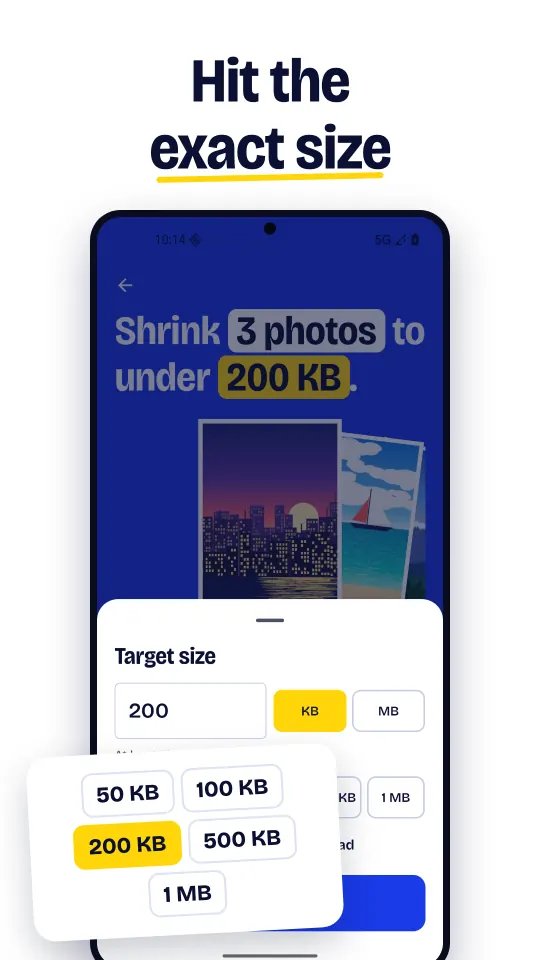
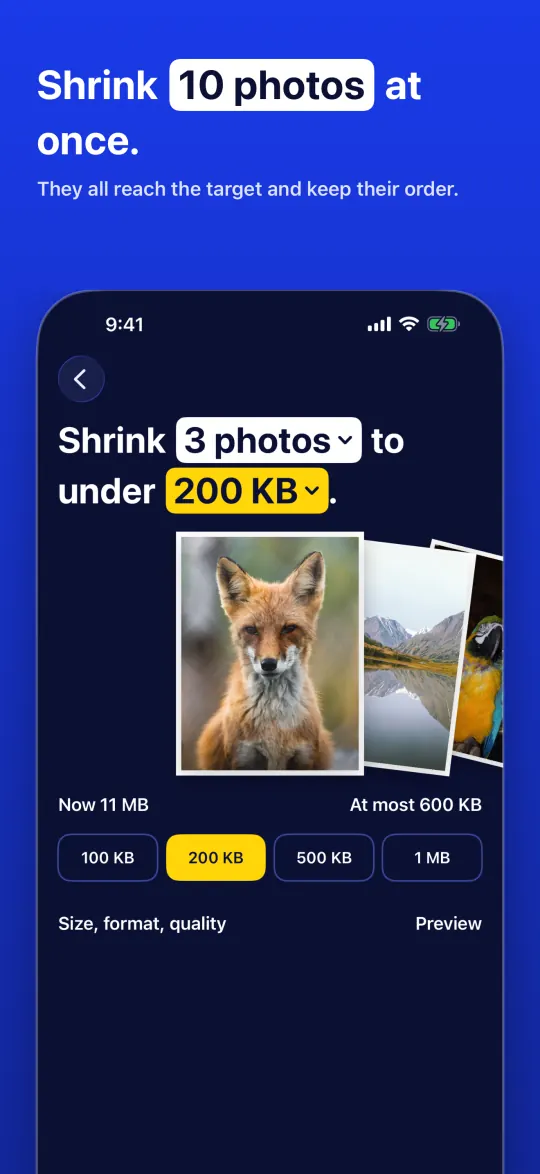
Tap 50 KB, 100 KB, 200 KB, 500 KB or 1 MB, or type your limit. If a size cannot be reached, the app tells you instead of quietly going over it.
Free on Android and iPhone · works offline
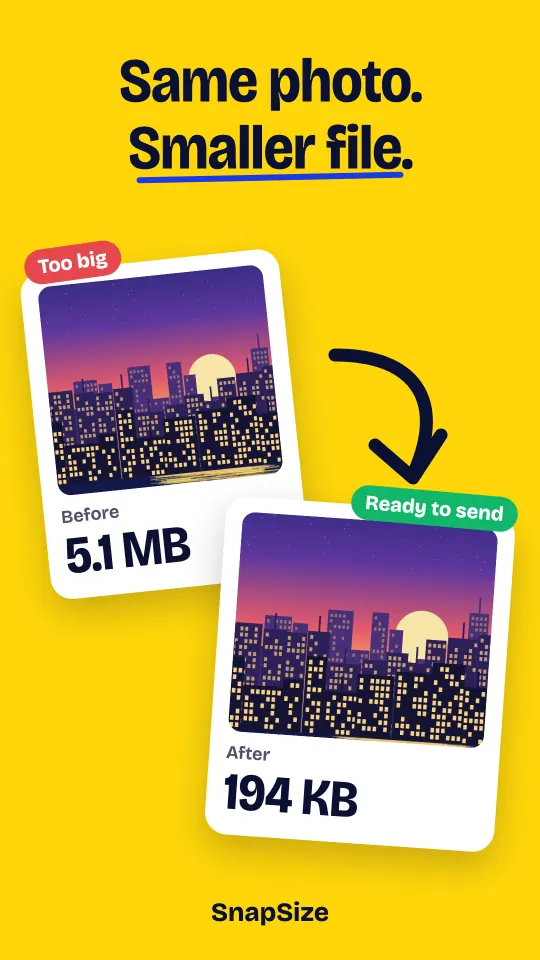
Need a smaller photo for a form, an email or an application? Set the exact size, pick your photos and you are done. SnapSize lowers quality first and resolution only if needed, so the picture stays sharp.
What it does
Compress, resize, crop and convert. Everything happens on your phone.
Tap 50 KB, 100 KB, 200 KB, 500 KB or 1 MB, or type your limit. If a size cannot be reached, the app tells you instead of quietly going over it.
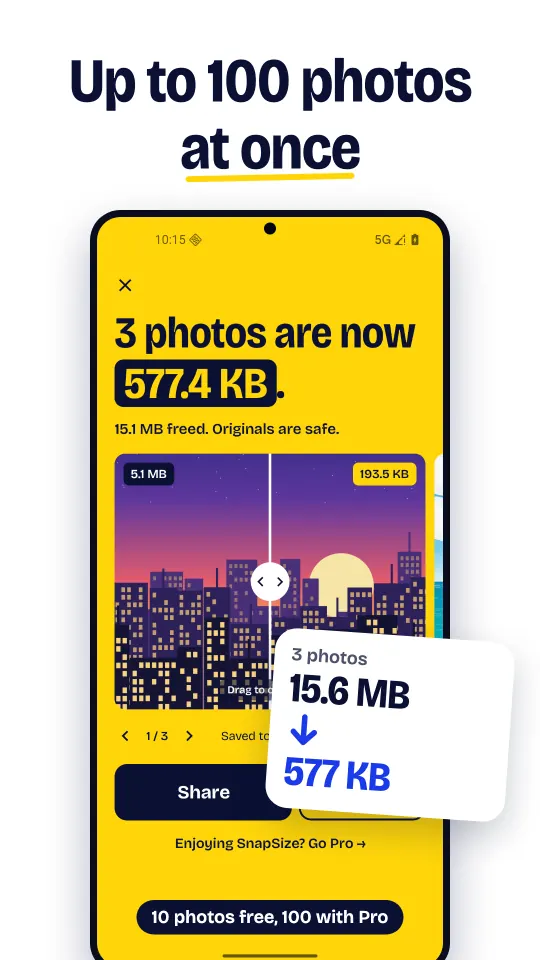
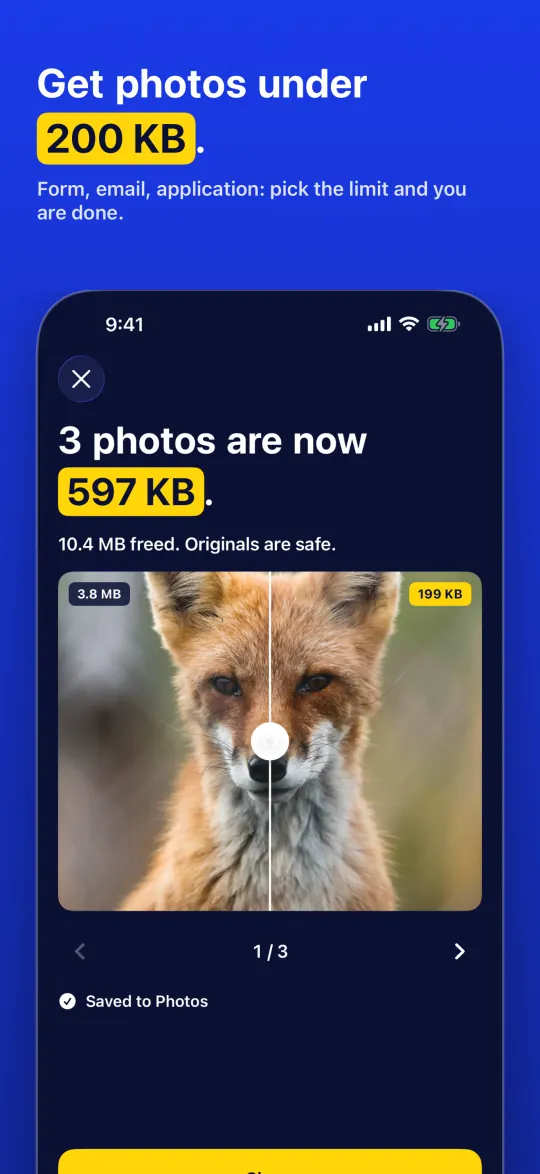
See how big your photos are now and about how small they will get. Preview one photo, then compare before and after with a slider.
Set an exact width and height in pixels, or shrink by percentage. Lock the aspect ratio to keep the proportions.
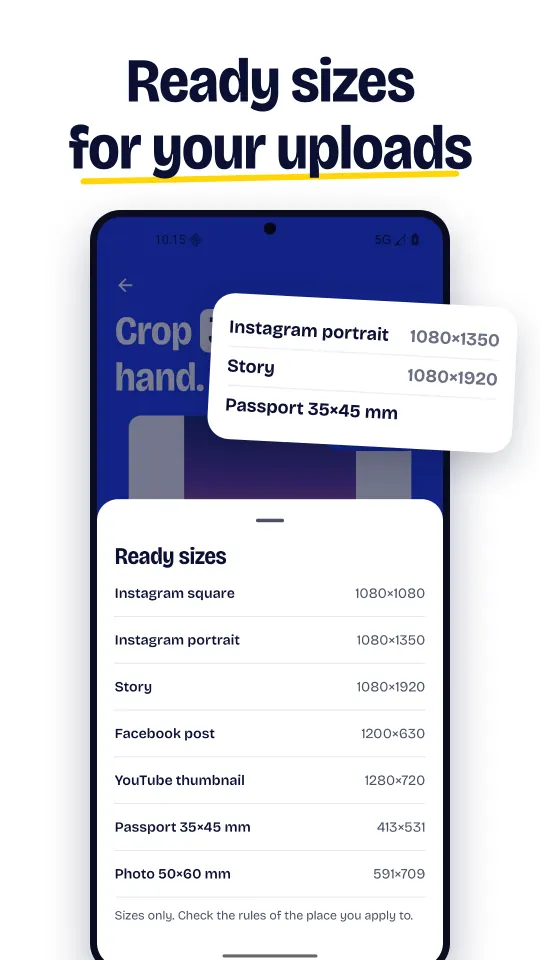
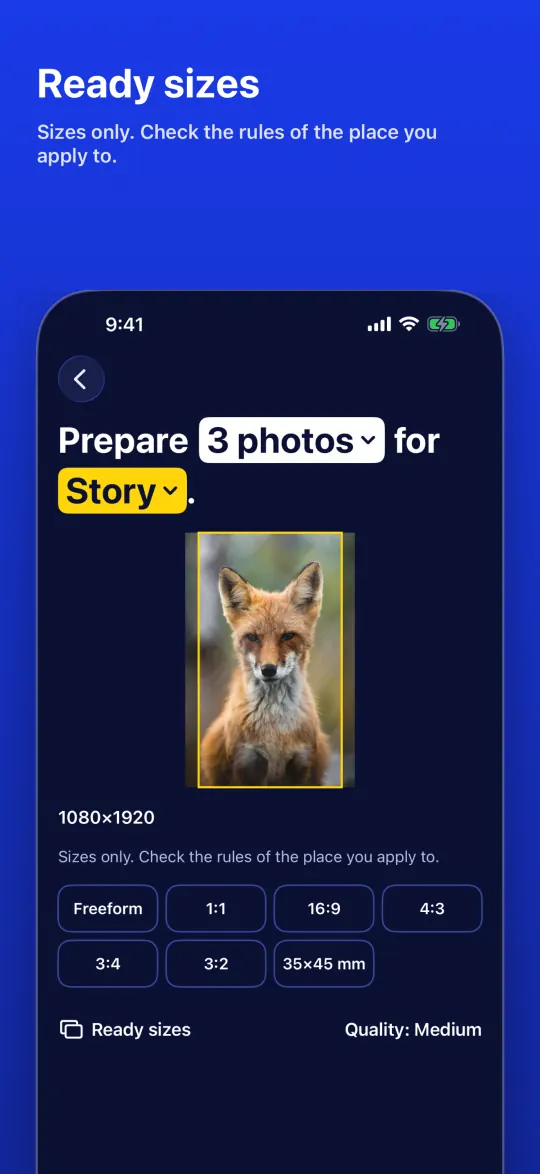
Crop by hand or with 1:1, 4:3, 3:4, 16:9, 3:2 and 35×45 mm, or pick a ready size for Instagram, a passport and more.
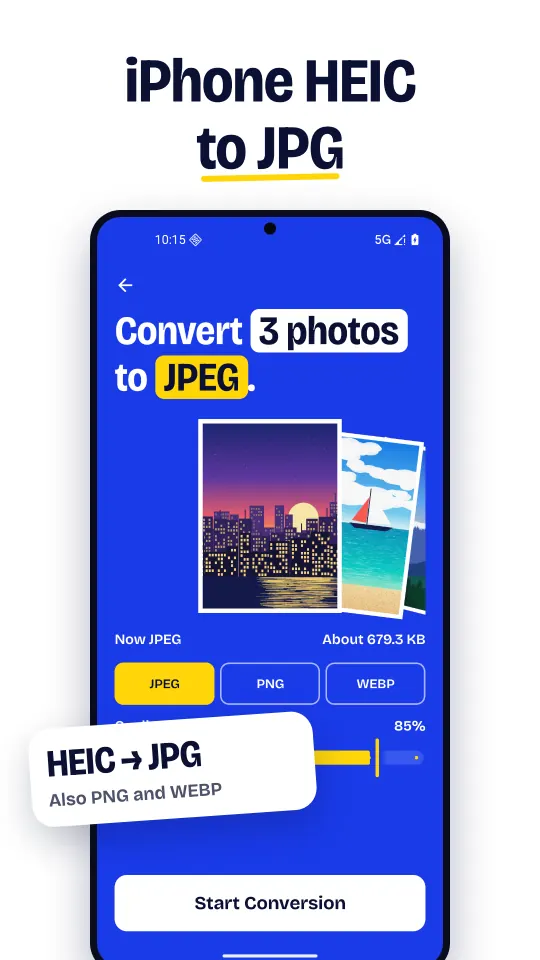
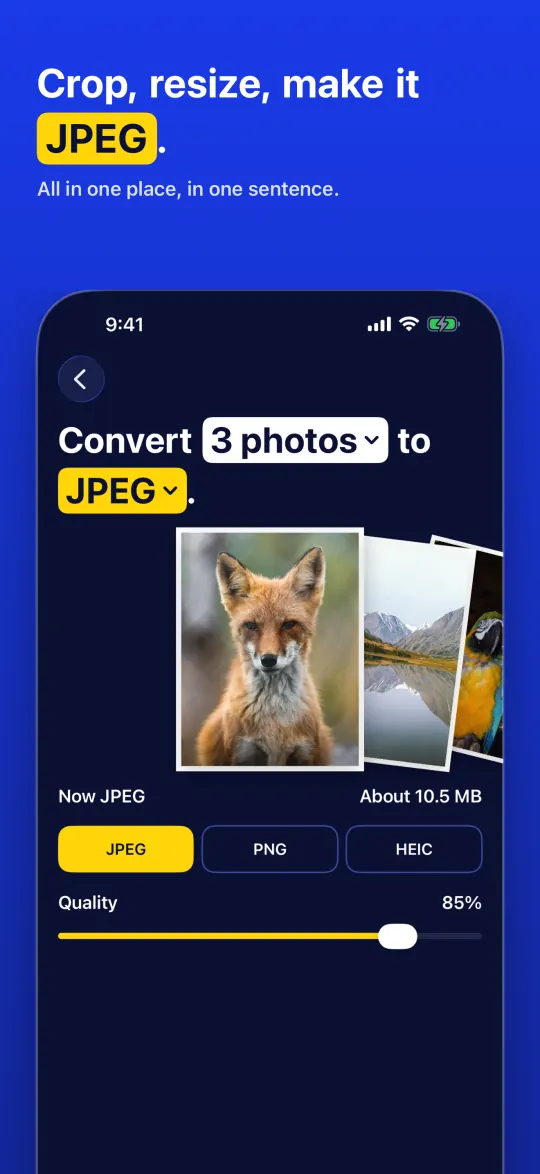
Open iPhone HEIC photos and convert them to JPG on Android 9 and newer. Convert between JPG, PNG and WEBP too. On iPhone, convert to JPG, PNG or HEIC.
Select several photos, pick a whole folder or share them from your gallery. Photos keep their order, and you can stop at any time. Whole folders are on Android.
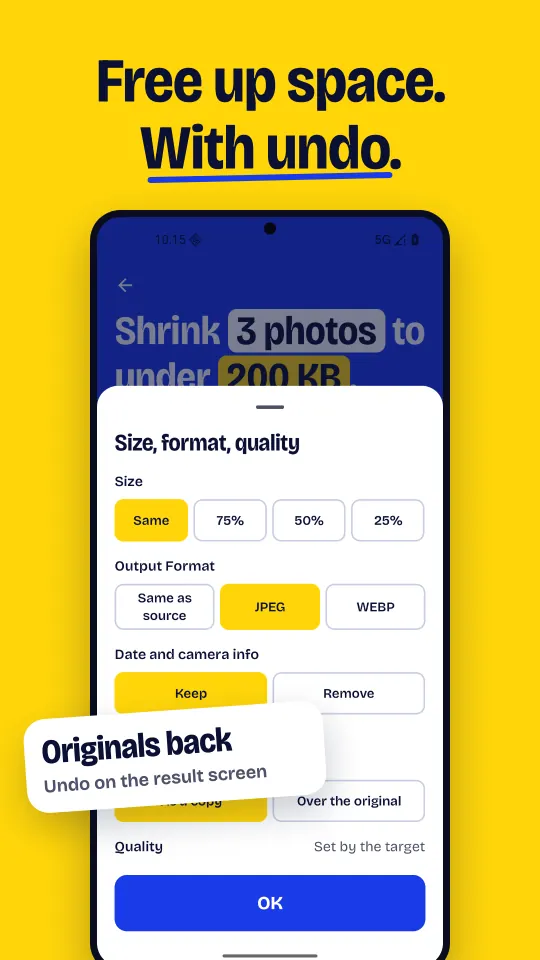
Results are saved as copies. To free up storage, put the smaller photo in the original's place, and undo it on the result screen. On Android.
Saved to Pictures/SnapSize with clear names. Keep or remove the capture date and camera info. Compress never saves a copy larger than the original. On iPhone, results go to the Photos app.
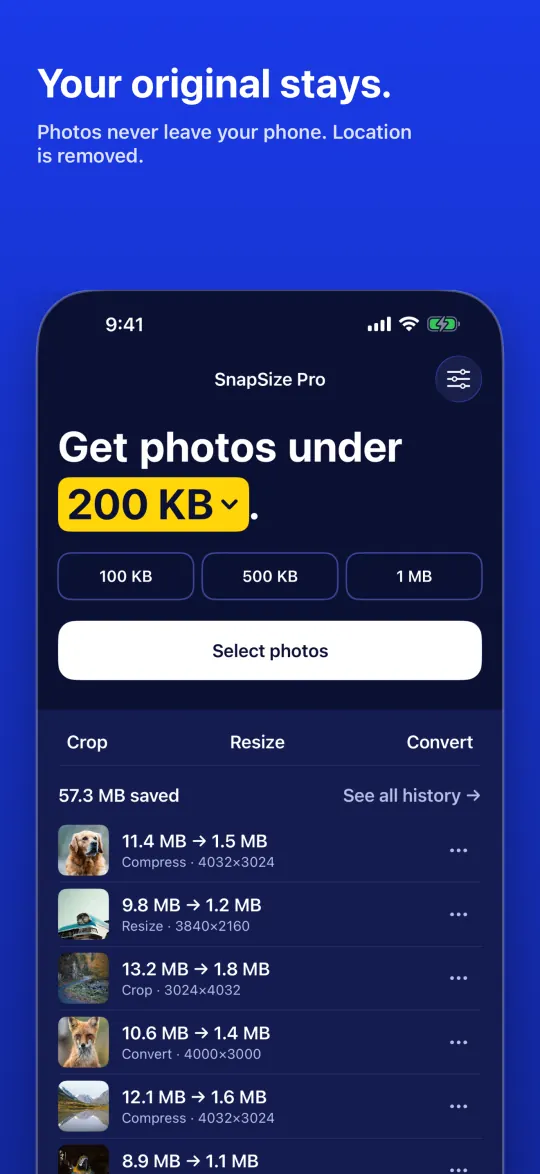
Every result is in History, with filters and bulk delete. A home screen widget shows today's savings, and long-pressing the app icon opens each tool. On iPhone, the widget shows your total savings.
Ready sizes
Pick a ready size and SnapSize crops to the shape and scales to the exact pixels.
These are sizes only. Always check the rules of the place you apply to.
Take a look
How it works
Tap 100 KB, 200 KB, 500 KB or 1 MB, or type the limit your form asks for.
Select one photo, several, or a whole folder. Preview first if you like. Whole folders are on Android.
The smaller copy is saved to Pictures/SnapSize. Share it right away or open it in your gallery. On iPhone, it goes to the Photos app.
Your originals stay as they are unless you choose to replace them.
Private by design
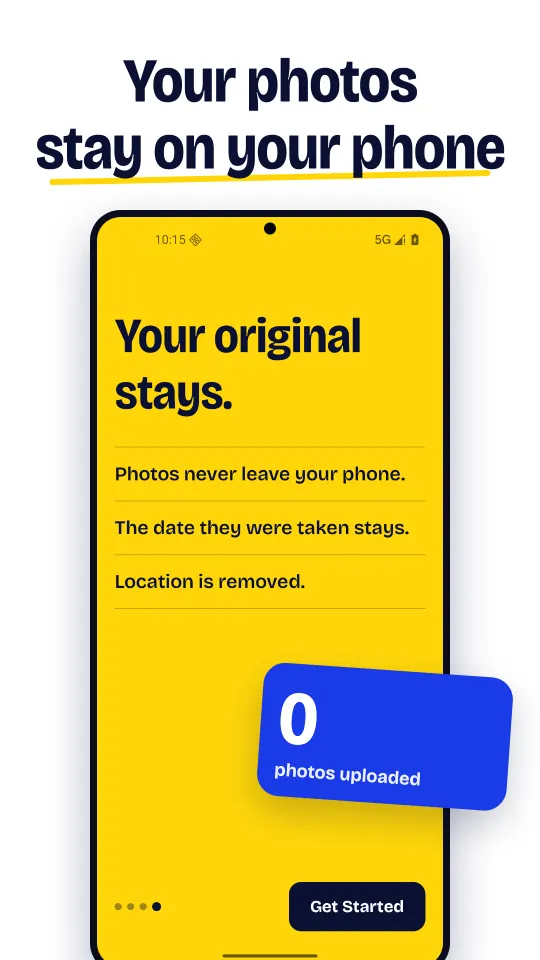
All processing happens on your device, and compressing works without internet. Only ads and purchases need a connection.
Pricing
No subscription, ever
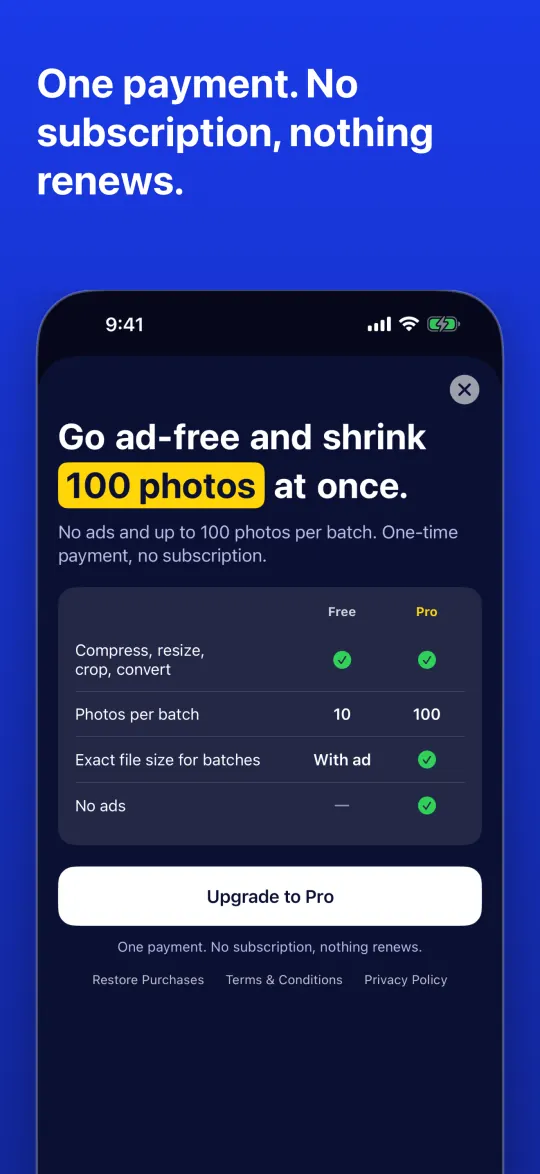
One-time payment
Pro is a one-time purchase, not a subscription. The price is shown in Google Play or the App Store in your local currency.
FAQ
Open SnapSize, tap 100 KB or 200 KB (or type any limit), select your photo and tap Compress. SnapSize lowers quality first and reduces resolution only if needed. If the size cannot be reached, the app tells you instead of saving a file that is too big.
Yes. Compressing, resizing, cropping and converting up to 10 photos at a time are free, with ads. Exact file size is free for single photos; for a batch, watch a short ad or go Pro. Pro is an optional one-time purchase.
No. All processing happens on your phone and your photos are never uploaded. Compressing works without internet; only ads and purchases need a connection.
SnapSize keeps as much quality as the size allows: it lowers quality first and resolution only when needed. You see about how small the file will get before you start, and you can compare before and after with a slider.
Yes. Select up to 10 photos for free or up to 100 with Pro, pick a whole folder, or share photos to SnapSize from your gallery. Photos keep their order, and you can stop at any time without losing the finished ones. Whole folders are on Android.
No. Results are saved as new copies in Pictures/SnapSize and your originals stay as they are. If you want to free up storage, you can choose to put the smaller photo in the original's place and undo it on the result screen. On iPhone, results are saved to the Photos app, and replacing originals is on Android only.
Yes. Resize to an exact width and height in pixels or by percentage, or pick a ready size: Instagram square and portrait, Story, Facebook post, YouTube thumbnail, passport 35×45 mm and photo 50×60 mm. These are sizes only, so check the rules of the place you apply to.
Yes. SnapSize opens iPhone HEIC photos and converts them to JPG on Android 9 and newer. You can also convert between JPG, PNG and WEBP. On iPhone, you can convert to JPG, PNG or HEIC.
GPS location is removed from every result. You choose whether to keep or remove the capture date and camera info. File names keep the original name when Android shares it, otherwise they use the capture date.
SnapSize works on Android phones and tablets with Android 8.0 or newer, and on iPhone with iOS 16 or newer (App Store). On iPhone, results are saved to the Photos app and you can convert to JPG, PNG or HEIC. Picking a whole folder and replacing originals are on Android only.
Download SnapSize for free and get your first photo to the right size in seconds.